With this integration, you can connect your stromleser.one with our app. Your power consumption will then be automatically sent to us every minute.
Only for stromleser.one
This integration is only possible with stromleser.one device.
Part 1: Create a Push-API in our app
Step 1: Open the device overview
- Open our app
- Go to the Devices section.
Step 2: Add a new device
- Tap on Add device.
Step 3: Select measuring system
- Select the Measuring system option.
Step 4: Select consumption measurement only
- Select Consumption measurement only.
Step 5: Select Push-API
- Select Stromleser as your connection method.
Step 6: Accept terms of use
- Read and accept the terms of use
Step 7: Copy Push-API key
- Generate a Push-API key
- You will now see a Push-API key.
-
Copy this key you will need it shortly in the Stromleser app.
Keep the API key safe
It is best to copy the API key directly to your clipboard. You will need it for the next step in the stromleser app.
Part 2: Set up the connection in the stromleser app
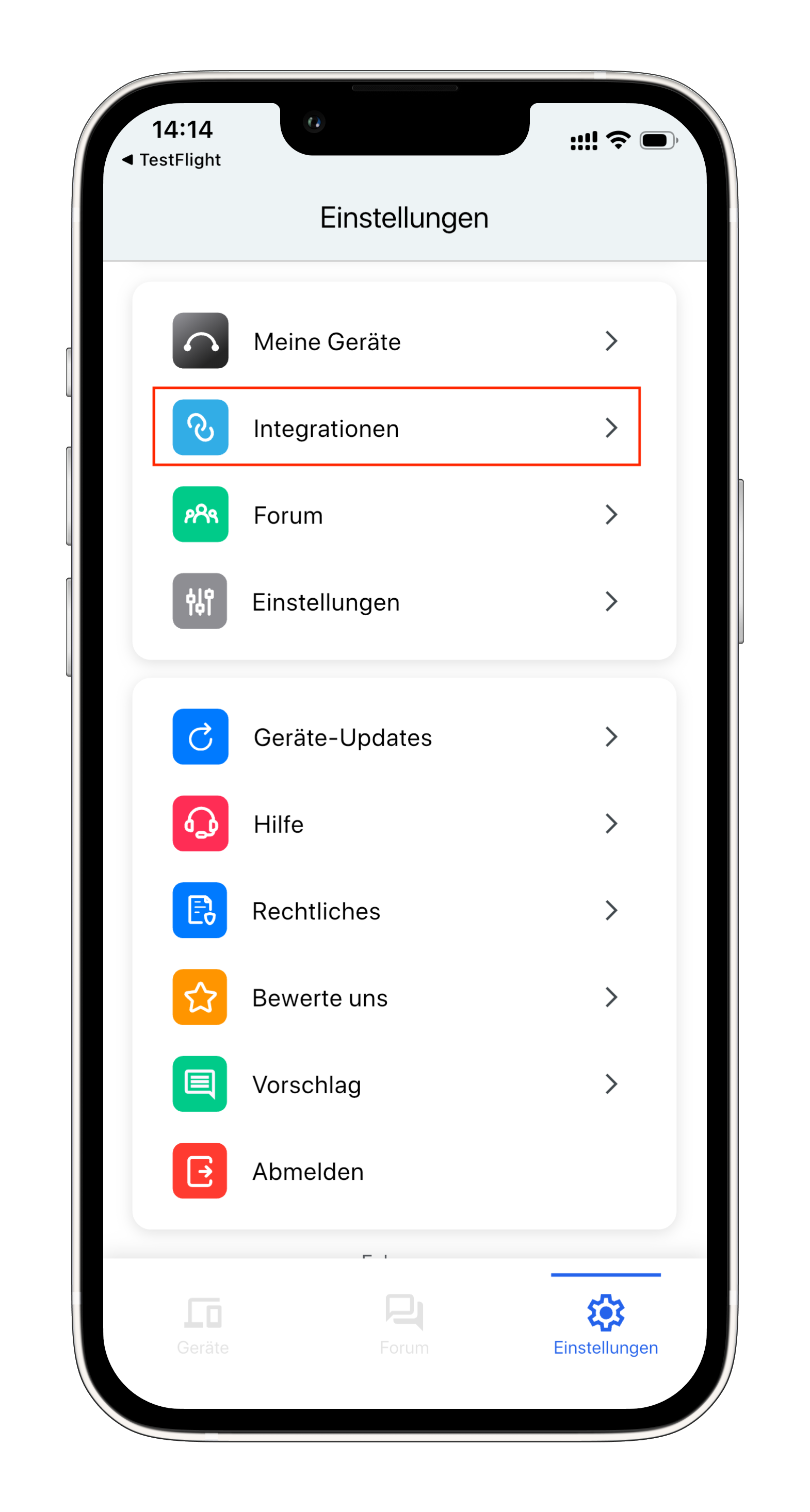
Step 8: Open integrations
- Open the stromleser app
- Go to Settings via the navigation bar.
- Tap on Integrations.
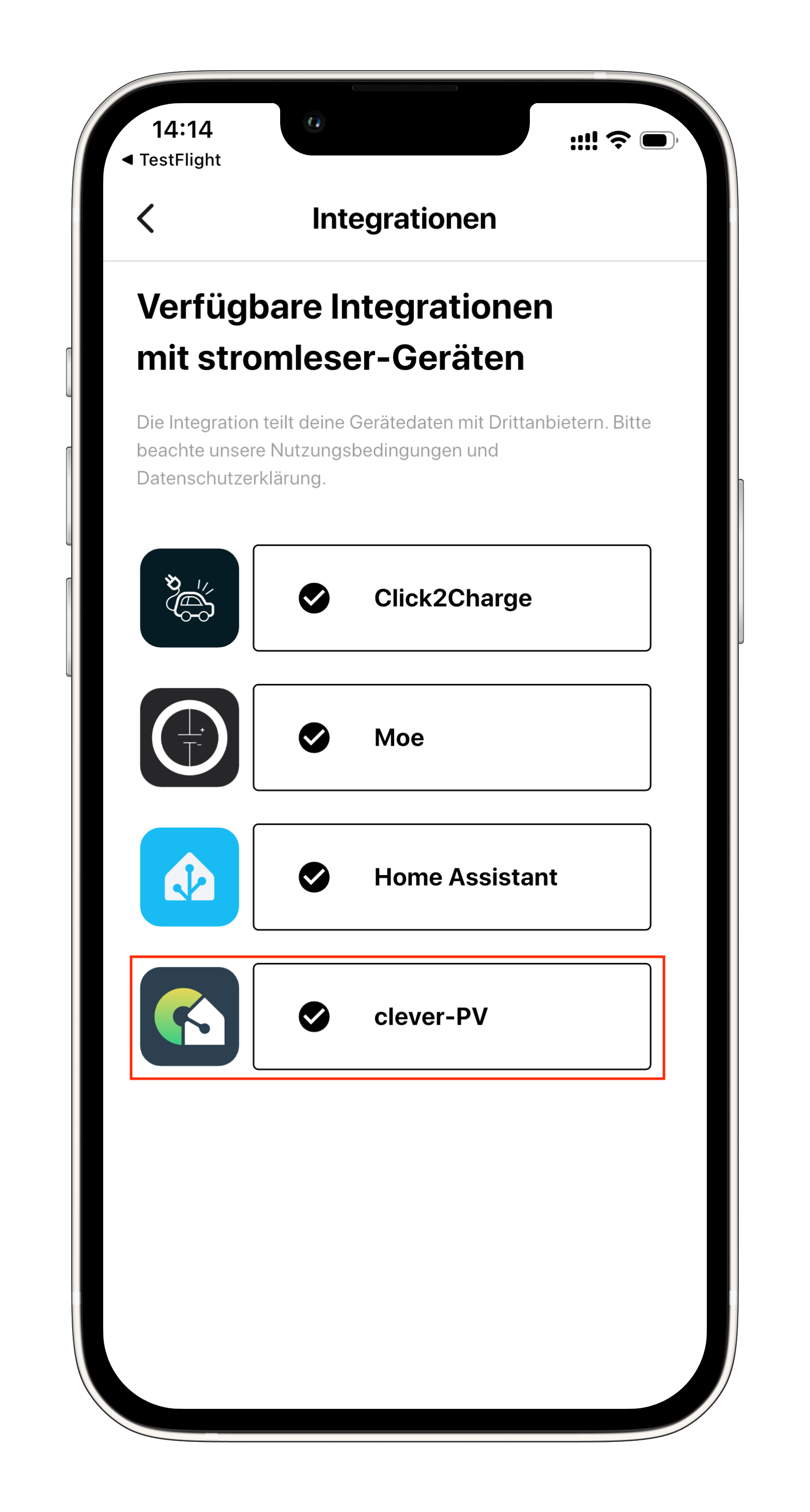
Step 9: Select clever-PV
- Select clever-PV from the list of available integrations.
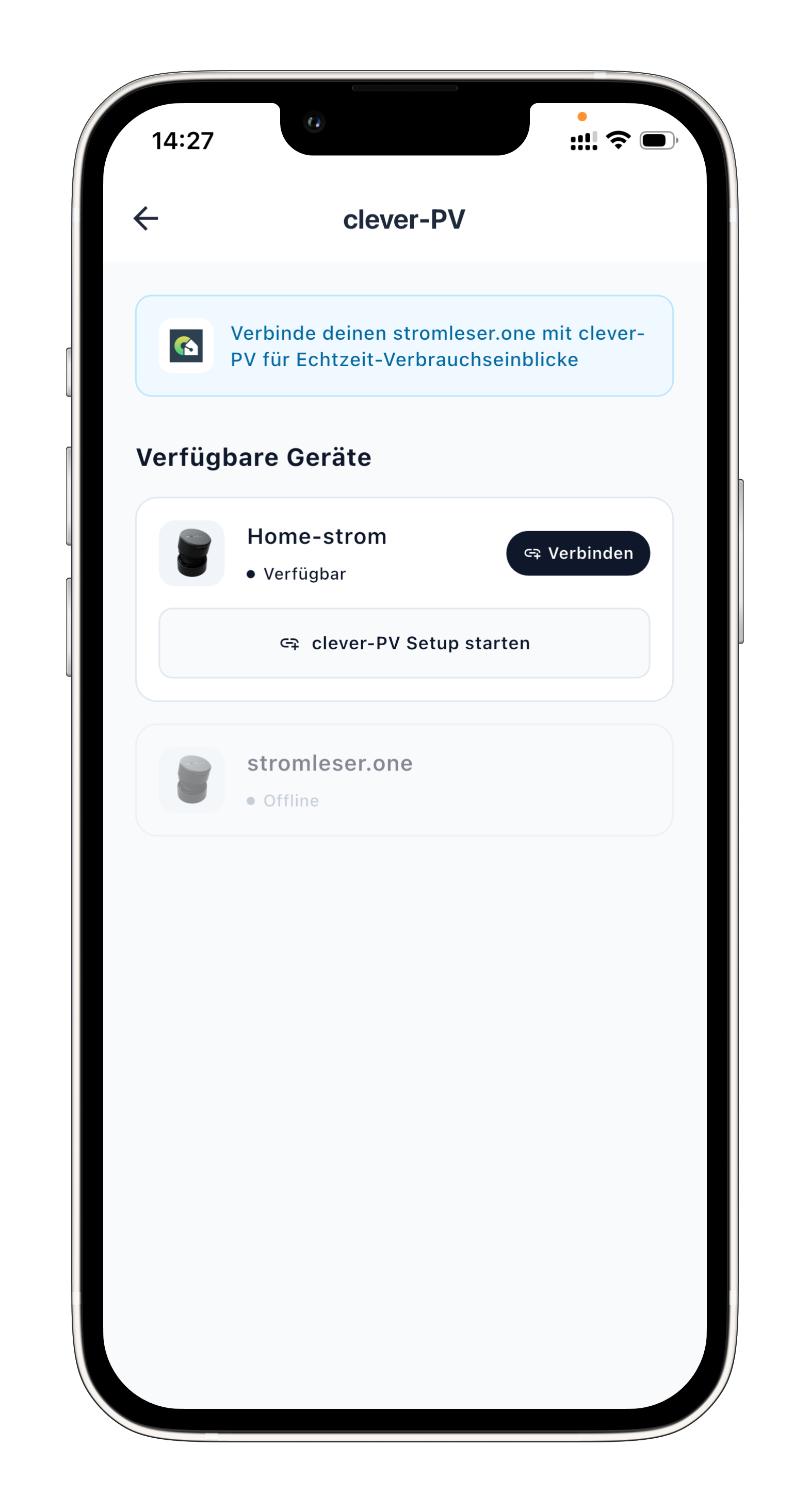
Step 10: Select device
- Select your stromleser.one device that you want to connect with our app
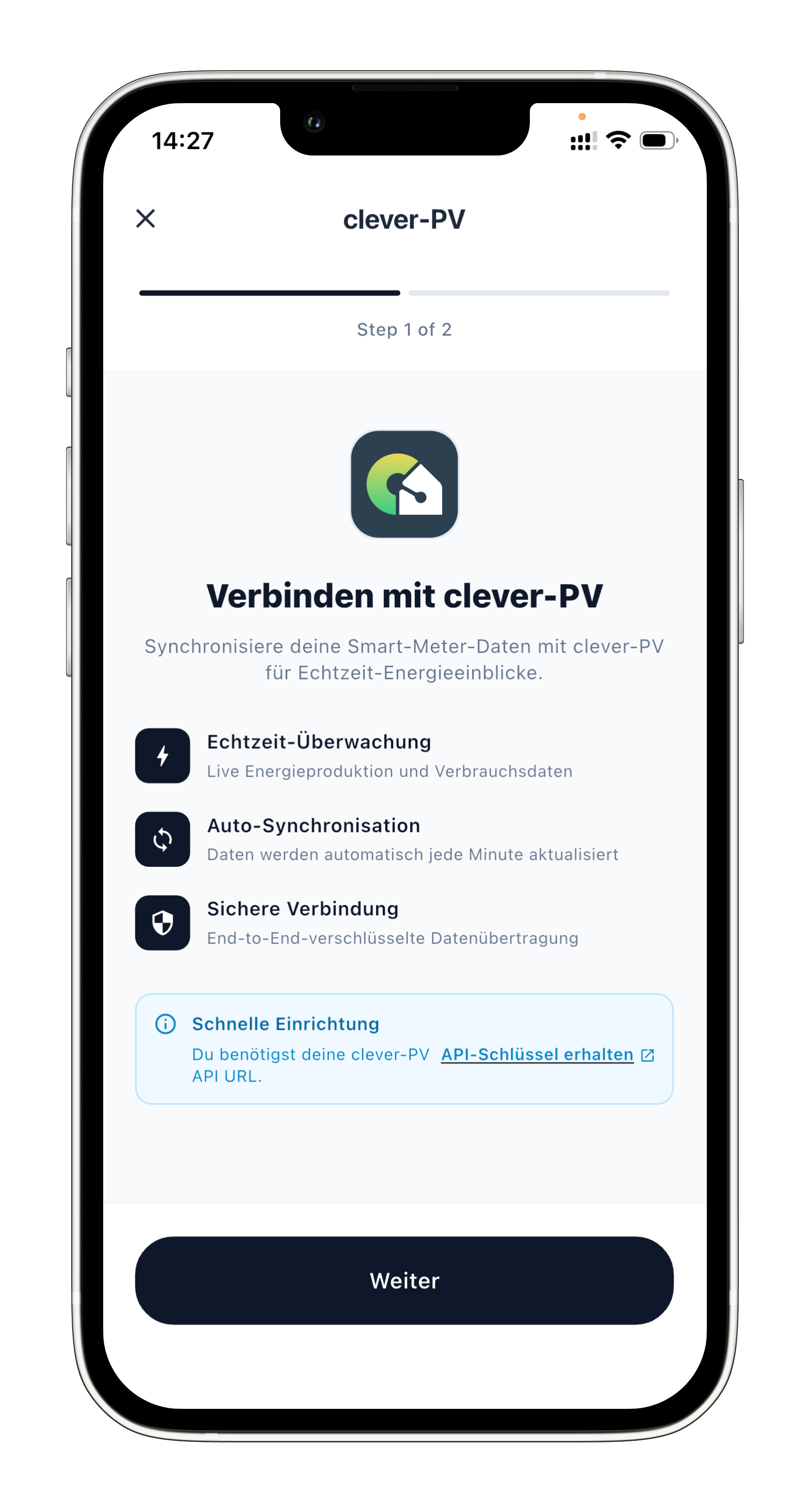
Step 11: Read integration description
- Read through the description of the integration
- Tap on Next.
Step 12: Paste and validate API key
- Paste the Push-API key that you copied earlier in our app.
- Tap on Validate connection.
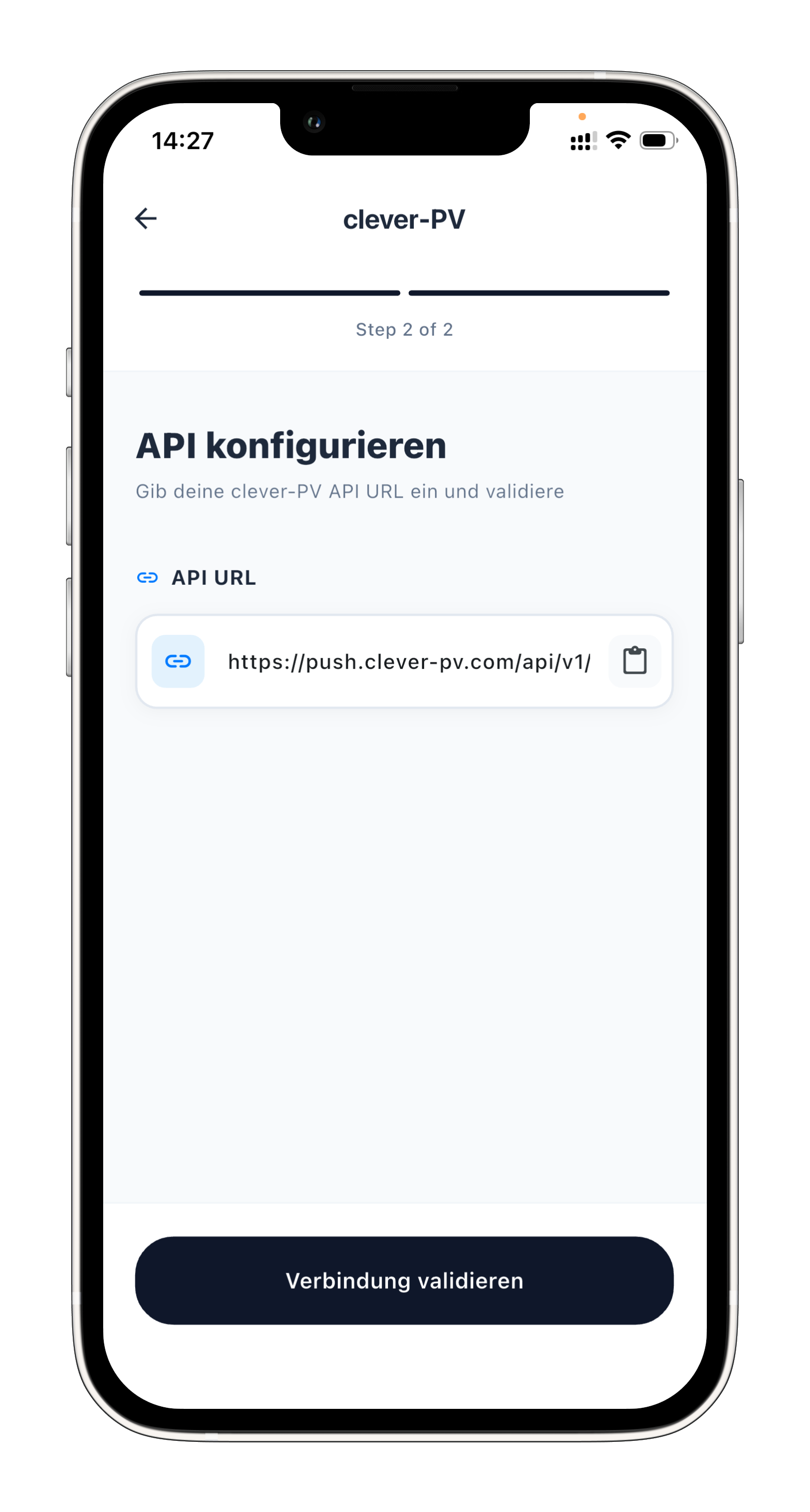
Step 13: Check data in our app
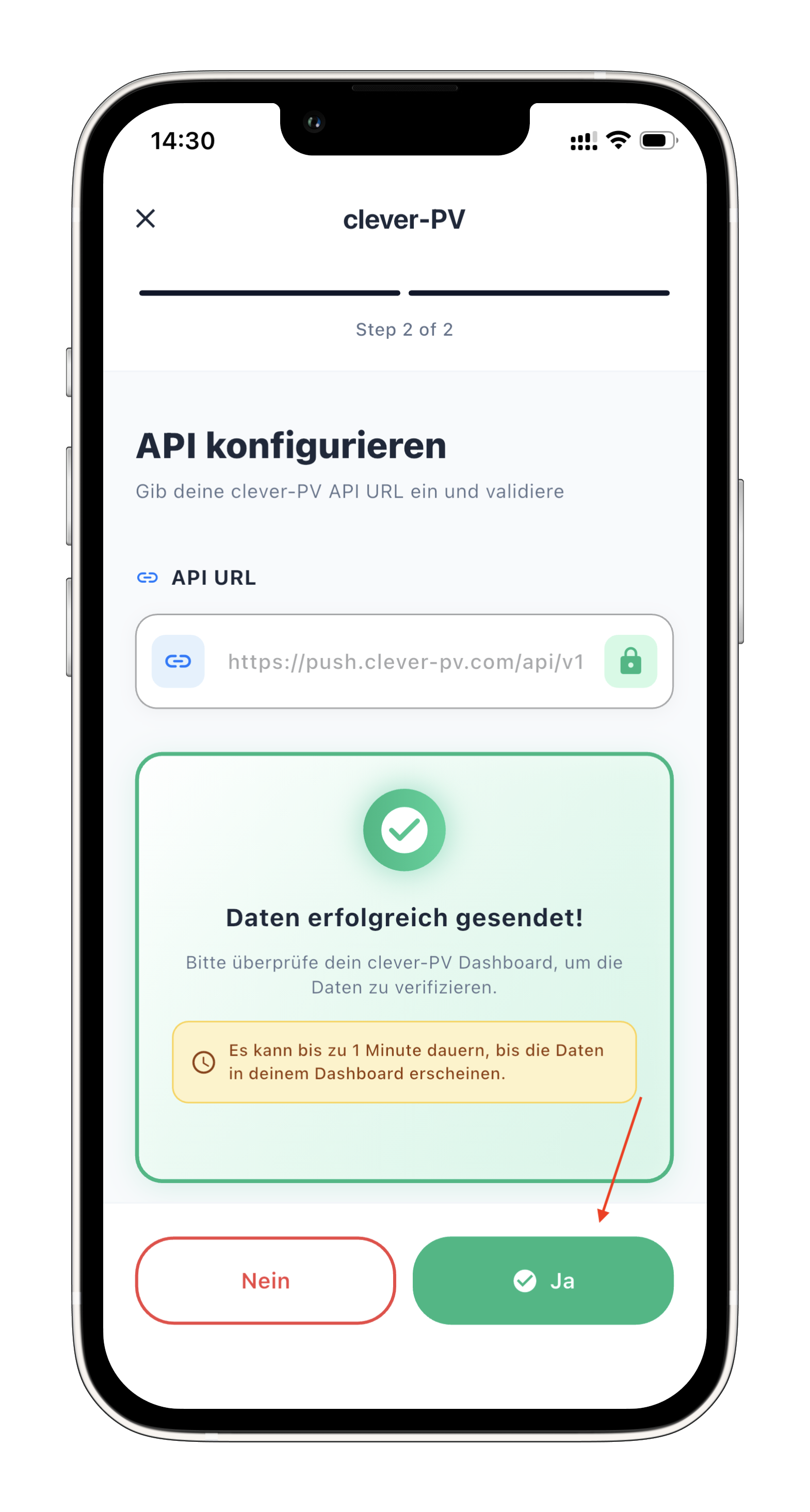
- Now check our app to see if data from your stromleser is already arriving.

Step 14: Save configuration
- If everything is working and you see data in our app, go back to the stromleser app
- Confirm with Yes to save the configuration.
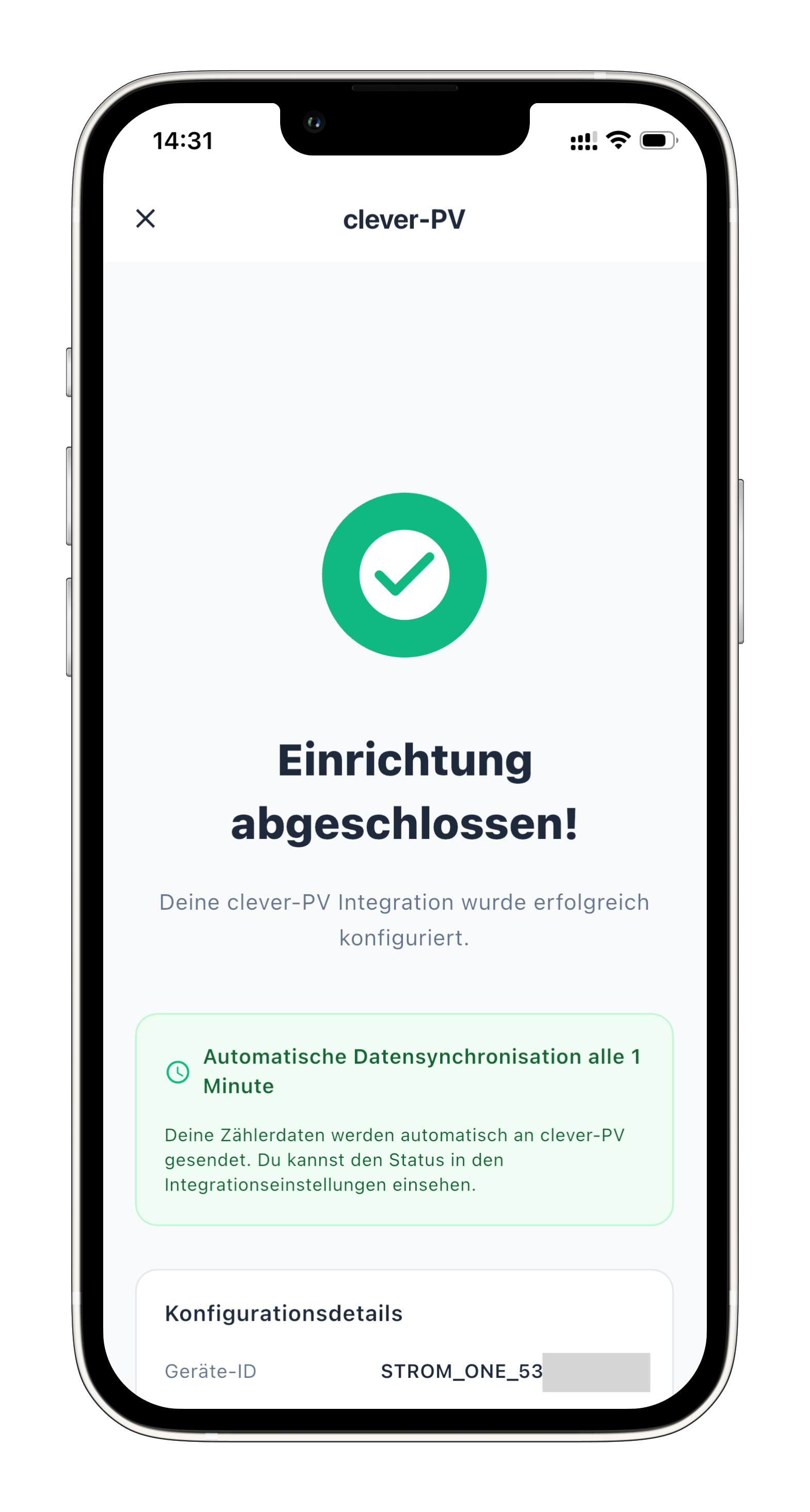
Done!
From now on, your power consumption data will automatically be sent to our app every minute.
Setup complete
Your stromleser.one is now connected to our app. The consumption data is automatically transmitted every minute.
Common issues
Validating connection fails
- Check whether you have copied and pasted the API key correctly.
- Make sure you have selected the Push-API option in our app.
- Check your internet connection
Our app is not showing any data
- Wait a few minutes after setup – data is sent every minute.
- Ensure that your stromleser.one is providing current measurement data.
- Check the stromleser app to see if readings are being displayed.
Lost API key
- You can create a new Push-API key in our app under Devices.
- Afterwards, you need to enter the new key in the Stromleser app.